
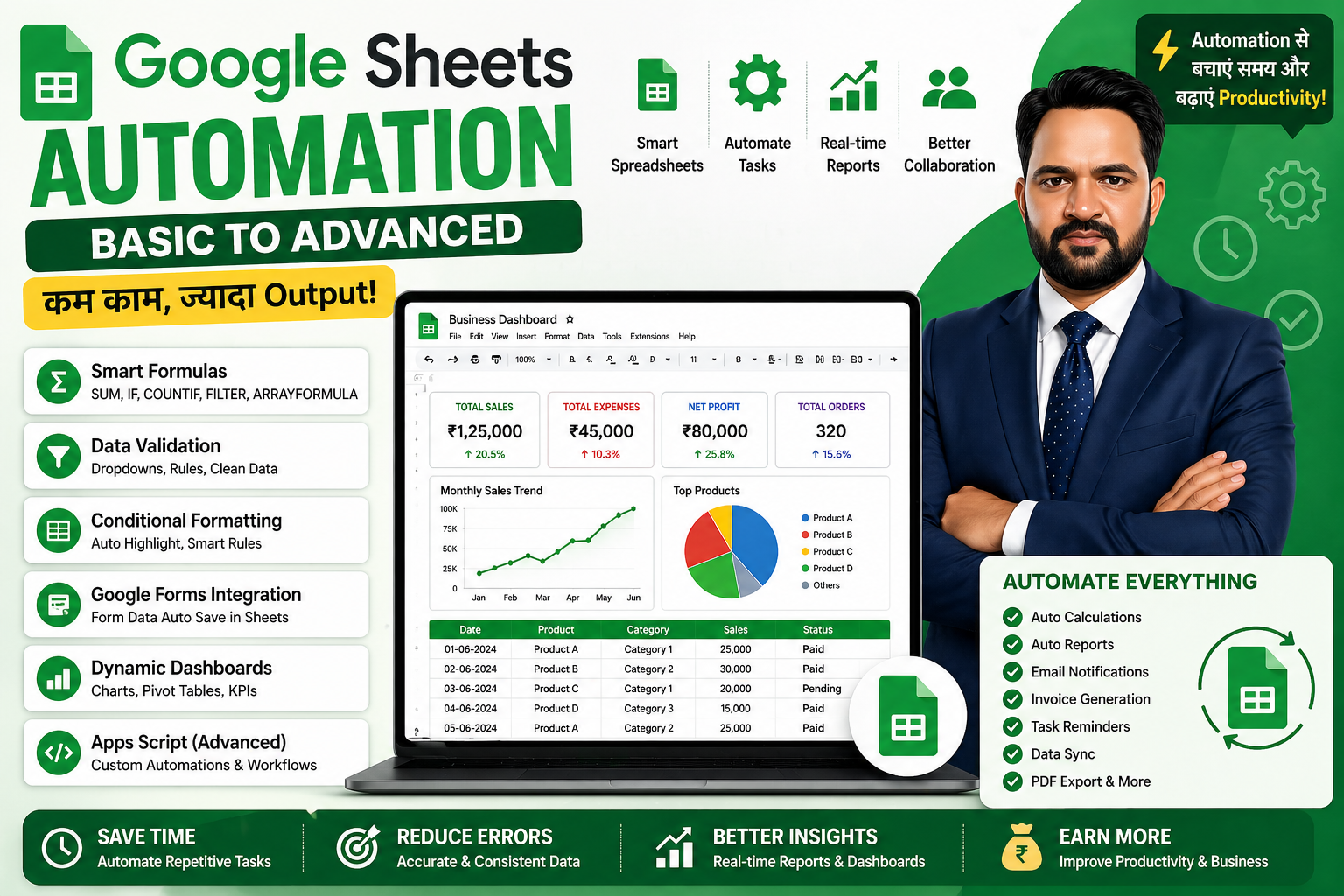
Google Sheets Automation Basic to Advanced: Beginner के लिए Complete Guide
आज के समय में businesses, freelancers, students और teams data manage करने के लिए Google Sheets का बहुत इस्तेमाल करते हैं। लेकिन अगर हर काम manually करना पड़े, तो काफी time waste होता है।
Google Sheets Automation की मदद से आप repetitive tasks को automatic बना सकते हैं। जैसे data entry के बाद automatic calculation, form response से report बनना, due date पर alert, invoice calculation, dashboard update और email notification.
इस guide में हम basic से advanced level तक समझेंगे कि Google Sheets Automation क्या है और इसे practical कामों में कैसे use किया जा सकता है।
Google Sheets Automation क्या है?
Google Sheets Automation का मतलब है Google Sheets में ऐसे formulas, rules, scripts या workflows set करना जिससे manual काम automatic हो जाए।
Example:
Form submit होते ही data sheet में आ जाए
Total amount अपने आप calculate हो
Status change होते ही color बदल जाए
Monthly sales dashboard automatic update हो
Low stock होने पर alert दिखे
Invoice amount automatic बने
Email notification send हो
Automation से आपका time बचता है और mistakes कम होती हैं।
Google Sheets Automation क्यों जरूरी है?
अगर आप business, freelancing या data work करते हैं, तो automation बहुत useful है।
Benefits:
Time saving
Manual errors कम होते हैं
Reports जल्दी बनती हैं
Data organized रहता है
Team collaboration आसान होता है
Business decisions faster होते हैं
Client को professional output मिलता है
Freelancing service की value बढ़ती है
Basic Level Automation
Basic automation में आपको advanced coding की जरूरत नहीं होती। आप formulas, formatting और built-in Google Sheets features से काफी काम automate कर सकते हैं।
1. Formulas से Automation
Google Sheets formulas automation का सबसे basic और powerful तरीका हैं।
Useful formulas:
SUM
AVERAGE
IF
COUNTIF
SUMIF
FILTER
SORT
VLOOKUP
XLOOKUP
IMPORTRANGE
ARRAYFORMULA
Example:
अगर B column में quantity और C column में price है, तो total amount निकालने के लिए:
=B2*C2
अगर payment status Paid है तो Completed दिखाना है:
=IF(D2="Paid","Completed","Pending")
2. Auto Total और Summary
आप formulas से automatic summary बना सकते हैं।
Example:
Total Sales:
=SUM(E2:E100)
Paid Orders Count:
=COUNTIF(F2:F100,"Paid")
Total Paid Amount:
=SUMIF(F2:F100,"Paid",E2:E100)
इससे report manually बनाने की जरूरत नहीं रहती।
3. Conditional Formatting
Conditional formatting से data automatically highlight होता है।
Use cases:
Pending status red
Completed status green
Low stock red
High sales green
Due date passed तो warning color
Negative profit red
Example:
अगर inventory stock 10 से कम है, तो row red हो जाए। इससे user को तुरंत पता चल जाता है कि stock low है।
4. Data Validation
Data validation से आप dropdowns बना सकते हैं। इससे data entry clean रहती है।
Example dropdowns:
Paid / Pending
Completed / In Progress / Cancelled
High / Medium / Low
Cash / UPI / Bank Transfer
Product category
Data validation automation में मदद करती है क्योंकि formulas और reports सही values पर depend करते हैं।
5. Google Forms से Automation
Google Forms को Google Sheets से connect करके आप automatic data collection कर सकते हैं।
Use cases:
Registration form
Customer inquiry form
Order form
Feedback form
Attendance form
Quiz form
Lead collection form
Form submit होते ही response automatically Google Sheets में save हो जाता है।
Intermediate Level Automation
Intermediate automation में formulas, reports, dashboards और connected sheets का इस्तेमाल होता है।
1. ARRAYFORMULA
ARRAYFORMULA से आप पूरा column automate कर सकते हैं।
Example:
अगर हर row में total amount निकालना है, तो हर row में formula copy करने की जरूरत नहीं:
=ARRAYFORMULA(IF(B2:B="","",B2:B*C2:C))
यह formula automatically सभी rows पर काम करेगा।
2. FILTER Formula
FILTER formula से आप specific condition के according data निकाल सकते हैं।
Example:
Paid orders दिखाने के लिए:
=FILTER(A2:F100,F2:F100="Paid")
Pending orders दिखाने के लिए:
=FILTER(A2:F100,F2:F100="Pending")
3. IMPORTRANGE
IMPORTRANGE से आप एक Google Sheet का data दूसरी Google Sheet में ला सकते हैं।
Example:
=IMPORTRANGE("sheet-url","Sheet1!A1:F100")
यह multiple files को connect करने के लिए useful है।
Use cases:
Branch-wise sales data combine करना
Team data master sheet में लाना
Client data अलग sheet से report में लाना
4. Dynamic Dashboard
Automation का सबसे useful use case dashboard है।
Dashboard में आप दिखा सकते हैं:
Total sales
Total expenses
Profit
Pending orders
Completed orders
Monthly trend
Top products
Customer summary
Category-wise chart
अगर source data update होता है, तो dashboard भी automatically update हो सकता है।
5. Pivot Tables
Pivot table से आप large data को quickly summarize कर सकते हैं।
Use cases:
Month-wise sales
Product-wise profit
Customer-wise orders
Category-wise expenses
Employee-wise performance
Pivot table dashboard और reports के लिए बहुत useful है।
6. Connected Sheets Workflow
आप अलग-अलग sheets बना सकते हैं:
Raw Data
Clean Data
Summary
Dashboard
Settings
Reports
इस structure से automation clean और professional रहता है।
Advanced Level Automation
Advanced automation में Google Apps Script का use होता है। Apps Script Google का JavaScript-based tool है, जिससे आप Google Sheets में custom automation बना सकते हैं।
1. Google Apps Script क्या है?
Google Apps Script एक scripting tool है जिससे आप Google Sheets, Gmail, Google Drive, Google Forms और Google Calendar के साथ automation बना सकते हैं।
Apps Script से आप कर सकते हैं:
Email send करना
PDF generate करना
Custom menu बनाना
Auto timestamp लगाना
Data copy करना
Reports generate करना
Form response process करना
Reminders send करना
2. Auto Timestamp
जब कोई row update हो, तो timestamp automatically add हो सकता है।
Use case:
Order received date
Status update date
Task completion date
Form submission time
3. Auto Email Notification
Apps Script से आप automatic email भेज सकते हैं।
Example:
New order received
Payment pending
Task assigned
Form submitted
Low stock alert
Client projects में यह feature बहुत valuable होता है।
4. Invoice Automation
Google Sheets से invoice automation बनाया जा सकता है।
Flow:
Client details enter करें
Product/service details add करें
Amount calculate हो
Invoice number generate हो
PDF बने
Email से client को send हो
यह freelancing और small business owners के लिए powerful automation है।
5. Low Stock Alert
Inventory tracker में अगर stock minimum level से नीचे जाए, तो alert automatic आ सकता है।
Use cases:
Small shop inventory
E-commerce stock
Office supplies
Warehouse tracking
6. Custom Menu
Apps Script से आप Google Sheets में custom menu बना सकते हैं।
Example:
Generate Report
Send Email
Create Invoice
Refresh Dashboard
Export PDF
इससे client को file use करना आसान लगता है।
7. Scheduled Automation
Apps Script triggers से काम time-based run हो सकता है।
Examples:
Daily report email
Weekly summary
Monthly invoice report
Daily backup
Automatic reminder
यह advanced workflow automation के लिए useful है।
Google Sheets Automation Projects
Practice के लिए ये projects बनाएं:
1. Attendance Automation
Features:
Google Form से attendance
Present/Absent count
Monthly attendance percentage
Student-wise summary
Auto dashboard
2. Expense Tracker Automation
Features:
Expense entry
Category dropdown
Monthly total
Category-wise chart
Budget vs actual comparison
3. Sales Dashboard Automation
Features:
Sales data entry
Product-wise sales
Monthly revenue
Profit calculation
Charts and dashboard
4. Inventory Management System
Features:
Opening stock
Purchase
Sales
Closing stock
Low stock alert
Supplier details
5. Invoice Generator
Features:
Client details
Invoice items
Tax calculation
Total amount
PDF generation
Email send
6. Lead Management System
Features:
Google Form leads
Lead status dropdown
Follow-up date
Priority
Client notes
Dashboard
7. Project Tracker
Features:
Task list
Assigned person
Deadline
Status
Progress
Delayed task highlight
Team dashboard
Google Sheets Automation से Freelancing कैसे करें?
Google Sheets Automation freelancing के लिए बहुत अच्छी skill है। Clients को simple spreadsheet नहीं, बल्कि smart automated system चाहिए होता है।
आप ये services दे सकते हैं:
Google Sheets automation
Google Forms to Sheets setup
Dashboard automation
Invoice automation
Inventory tracker
Expense tracker
Sales report automation
Attendance system
Lead management sheet
Apps Script automation
Fiverr Gig Ideas
आप Fiverr पर ये gigs बना सकते हैं:
I will automate your Google Sheets using formulas and Apps Script
I will create Google Sheets dashboard and reports
I will connect Google Forms with Google Sheets
I will create automated invoice system in Google Sheets
I will build inventory management system in Google Sheets
I will create lead tracking system in Google Sheets
Pricing कैसे रखें?
Beginner pricing:
Basic: $10 to $20
Standard: $30 to $60
Premium: $80 to $150
Basic package:
Simple formulas, formatting and dropdowns
Standard package:
Dashboard, reports and multiple sheets
Premium package:
Apps Script automation, email alerts, PDF generation and advanced workflow
जैसे-जैसे skill और portfolio बढ़े, pricing बढ़ा सकते हैं।
Google Sheets Automation सीखने का Roadmap
Step 1: Google Sheets Basics
Rows, columns, formatting, formulas और sharing सीखें।
Step 2: Important Formulas
SUM, IF, COUNTIF, SUMIF, FILTER, VLOOKUP, XLOOKUP, IMPORTRANGE और ARRAYFORMULA सीखें।
Step 3: Data Cleaning
Duplicate remove, spaces clean, data validation और conditional formatting सीखें।
Step 4: Dashboards
Charts, pivot tables, summary cards और dashboard design सीखें।
Step 5: Google Forms
Google Forms को Sheets से connect करना सीखें।
Step 6: Apps Script Basics
JavaScript basics और simple Apps Script automation सीखें।
Step 7: Advanced Projects
Invoice automation, email notification, report generator और inventory system बनाएं।
Common Mistakes
Beginners automation सीखते समय ये mistakes करते हैं:
Formulas test नहीं करते
Client requirement clear नहीं लेते
Data structure खराब रखते हैं
Too many formulas से sheet slow कर देते हैं
Backup copy नहीं रखते
File permissions गलत रखते हैं
User instructions नहीं देते
Apps Script errors ignore करते हैं
Mobile view check नहीं करते
Best Practices
Google Sheets automation बनाते समय:
Clean structure रखें
Raw data अलग रखें
Dashboard अलग रखें
Settings sheet बनाएं
Dropdowns use करें
Important cells lock करें
Instructions sheet add करें
Backup रखें
Client को demo दें
Formula cells protect करें
Google Sheets Automation और AI
AI tools की मदद से automation सीखना और आसान हो गया है।
आप AI से पूछ सकते हैं:
इस Google Sheets task के लिए formula बताओ
Apps Script code लिखो
Dashboard layout suggest करो
Invoice automation flow बनाओ
Error fix करो
Client delivery message लिखो
Example prompt:
मेरे पास Google Sheets में order data है। मुझे paid orders का automatic summary dashboard बनाना है। इसके लिए formulas और layout suggest करो।
Beginner Action Plan
Day 1:
Google Sheets interface और basic formulas सीखें
Day 2:
IF, COUNTIF, SUMIF और dropdowns practice करें
Day 3:
Conditional formatting और data validation सीखें
Day 4:
Google Forms को Sheets से connect करें
Day 5:
Expense tracker automation बनाएं
Day 6:
Dashboard बनाएं
Day 7:
ARRAYFORMULA और FILTER सीखें
Day 8-10:
Sales dashboard project बनाएं
Day 11-15:
Apps Script basics सीखें
Day 16-20:
Invoice automation project बनाएं
Day 21-30:
Portfolio बनाएं और Fiverr gig publish करें
Conclusion
Google Sheets Automation एक powerful skill है जो beginners को freelancing, business automation और digital product creation में मदद कर सकती है।
Basic level पर आप formulas, dropdowns, conditional formatting और Google Forms से automation शुरू कर सकते हैं। Intermediate level पर dashboards, pivot tables, ARRAYFORMULA और IMPORTRANGE सीख सकते हैं। Advanced level पर Apps Script से email alerts, invoice generation, PDF export और custom workflows बना सकते हैं।
अगर आप Excel, Google Sheets, AI और freelancing में skill build करना चाहते हैं, तो Google Sheets Automation आपके लिए बहुत strong career और earning opportunity बन सकती है।
Viznova पर हम practical guides, templates और live sessions के जरिए आपको step-by-step digital skills सीखने में मदद करते हैं।
Your Comments & Ratings